Graphic Mods and Post-Processing Tools
Out of the box, GTA V looks the way its developers made it in 2013: a particular balance of lighting, textures and colour, shaped by the technical limits of its time. Graphic mods and post-processing tools let you change that look, and with it the kind of images you can make in the game, from cinematic realism to analogue film grain, shallow depth of field or something stranger.
This manual covers three tools that work at different levels. NaturalVision Evolved rebuilds the game world itself, with new lighting, weather and textures. ReShade works on top of the finished image, as a stack of filters comparable to editing or darkroom software. DLSS 5 is an experimental, AI-based approach that reworks the image in real time and builds on ReShade. They can be used on their own or combined, and the sections below follow the order in which they are best installed.
NaturalVision Evolved
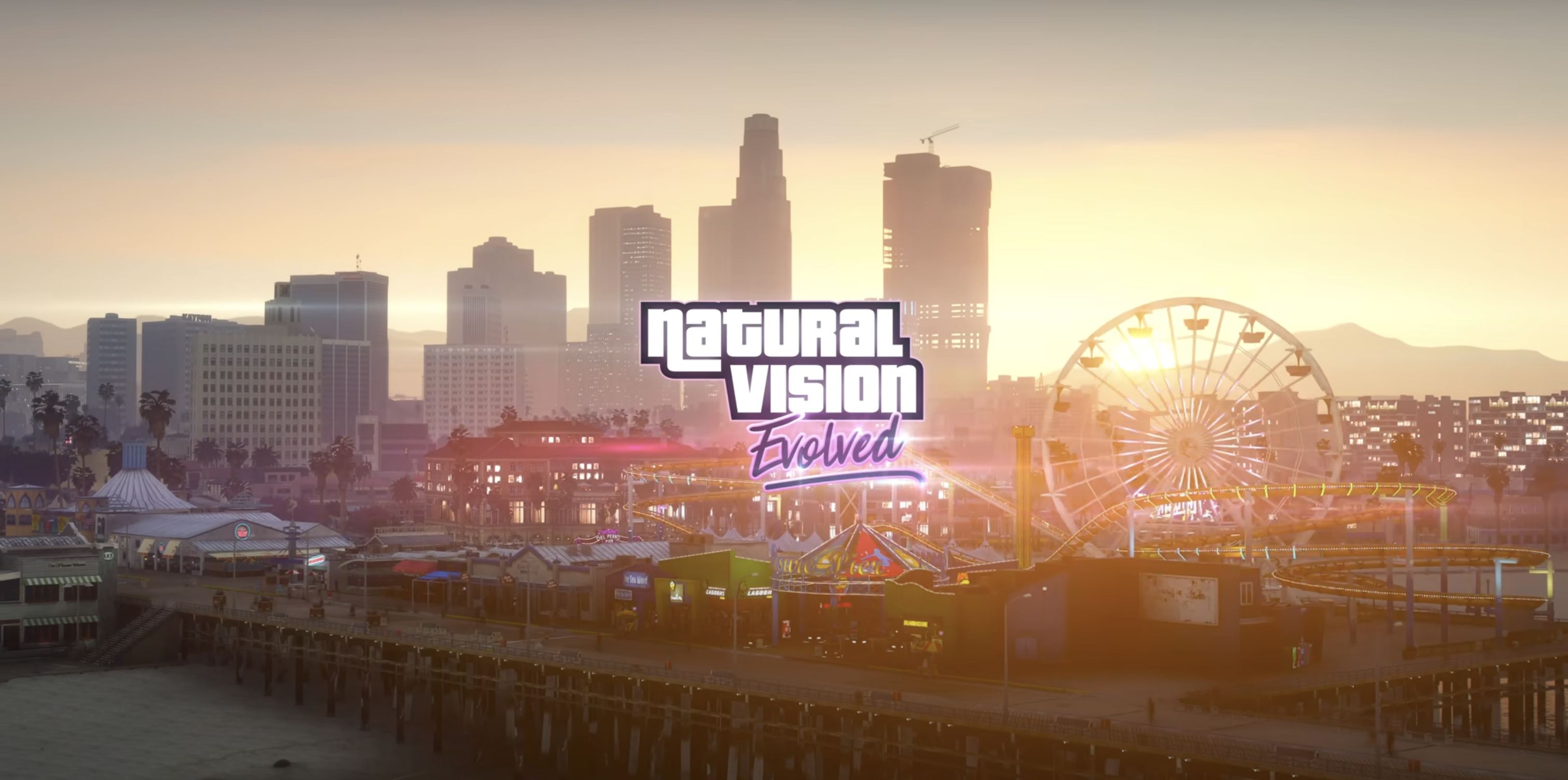
NaturalVision Evolved (NVE) is a graphic mod developed by Jamal Rashid, aka Razed. This mod enhances GTA V’s lighting, weather effects, ambient colours, world textures, building models, pushing the photo-realism and cinematic looks. While the mod contains settings for different hardware, it’s recommended to have a relatively powerful PC with a good graphic card. To install this mod you will also need OpenIV, a free modding toolset for Grand Theft Auto V and other games.
Installation and setup:
-
Go to razedmods.com/gta-v and download NaturalVision Evolved (6.2 Gb).
-
Go to openiv.com and download Open IV, Open ‘ovisetup’ and install Open IV on your computer.
-
Select GTA V Windows. Choose the Grand Theft Auto V folder
- C:\Program Files (x86)\Steam\steamapps\common\Grand Theft Auto V
-
Once Open IV is open, go to your file window, select the
- Tools
menu on top of the window, and select- ASI Manager
. In- ASI Manager
install all options: ASI Loader, OpenIV.ASI and openCamera. -
Select
- Tools
again and click- Options
. Click on the- "mods" folder
tab and select- Allow edit mode only for archives inside the "mods" folder
. Click- Close
. -
Select
- Edit mode
at the top right of the window. Select- OK
on the pop up window. -
Now you can add your mod to the mods folder.
-
Open the NVE mod folder, extract and select NaturalVision Installer PART ONE and drag it to Open IV. Install the file and select “mod folder” when asked to choose. After that is complete, extract and select NaturalVision Installer PART TWO and drag it to Open IV. Install the file and select “mod folder” when asked to choose. The Installers have to be executed in order: first do PART ONE, and then do PART TWO.
-
Go back to your downloads and inside the NVE folder you can choose some optional addons. Install/Uninstall them with Open IV as above. Always choose to select “mod” folder and select install.
-
Open GTA V, press
- ESC
to bring up the menu and go to SETTINGS. Adjust the graphics quality, making sure- Shader Quality
,- Particle Quality
and- Post FX
are set to. Restart the game to make changes effective. More details about installation are provided in the README file inside the NVE zip folder.
ReShade
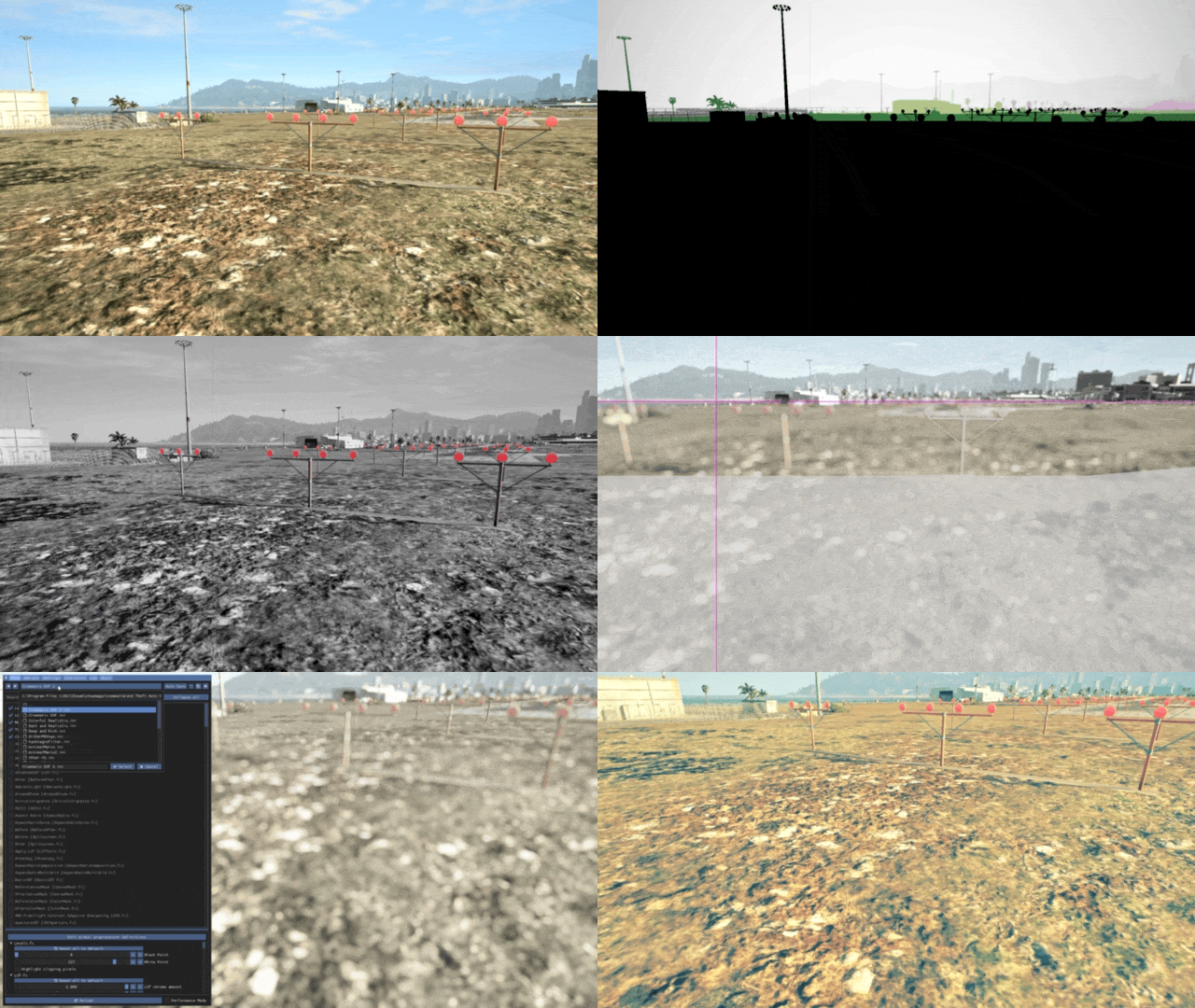
ReShade is a generic post-processing injector for games and video software developed by crosire.
Installation and setup:
-
Go to reshade.me and download the latest version
-
Open ReShade Setup and select
- Browse
and navigate to your Grand Theft Auto V folder and select GTA5.exe. Leave Direct X 10/11/12 checked and click Next. -
When asked to select presets to install, check SweetFX by CeeJay.dk and all the effect packages you want to install (OtisFX by Otis_Inf and CobraFX by SirCobra are particularly interesting for simulation of analogue photography, including depth of field) and complete installation. You can also select and install all filters, so you can play around with them all.
-
Run GTA V and press the
- Home key
to bring up the menu. The first time you bring up Reshade, it will offer to give a short tutorial on how to choose and create presets. You can use the ReShade Default preset to turn on and off all the different filters. Each filter can be adjusted by modifying its parameters at the bottom of the panel. -
Create a new preset by duplicating the ReShade Default preset and giving it a custom name. Mess around with its setting to see how it affects the visuals of the game. Thanks to different effects and presets, the aesthetics of the game world can be configured to obtain looks that are completely different from the original graphics created by the developers and designers of the game.
DLSS 5 (experimental)
DLSS 5 is NVIDIA's latest iteration of its DLSS technology, announced at GTC in 2026. Earlier versions of DLSS (Deep Learning Super Sampling) used machine learning to upscale a lower-resolution image or to generate additional frames. DLSS 5 goes further: NVIDIA describes it as a real-time neural rendering model that takes information from the game's own rendering, such as colour, depth and motion, and reworks the image with more photoreal lighting, shadows and materials, for example the way light behaves on skin, hair, fabric and other surfaces. In other words, it does not only reconstruct the frame, it adds to it with a generative model running locally on your graphics card. The technology is controversial, as the result can differ noticeably from the look that the developers and artists originally intended, which makes it especially interesting for an image-making practice inside a game world.
DLSS 5 is not officially supported by GTA V. The method described here is an unofficial community mod that connects the DLSS 5 neural rendering libraries to the game through a ReShade add-on (RenoDX). It is experimental, results vary between setups, and it comes with a heavy performance cost: reported tests of GTA V Enhanced at 1440p with ray tracing on an RTX 4070 averaged around 43 FPS. NVIDIA officially limits DLSS 5 to GeForce RTX 50 series cards, although modders have shown that it can run on older RTX cards, usually at lower frame rates.
Important: use this mod in single-player mode only. Before launching GTA Online, remove all the files listed below (or use a separate copy of the game), as modified DLSS and ReShade files are not meant to be used online.
Installation and setup:
-
Make sure you have an NVIDIA RTX 5090 graphics card and up-to-date NVIDIA drivers (workarounds are available for the 4000, 3000 and 2000 series but they are not recommended in terms of stability and fps).
-
The standard ReShade version described above is not enough. Go to reshade.me and download the version with full add-on support.
-
Run the ReShade Setup, select
- Browse
, navigate to your Grand Theft Auto V folder and select the game's executable (GTA5.exe for GTA V Legacy, GTA5_Enhanced.exe for GTA V Enhanced). Install it as described in the ReShade section above. If you already installed ReShade, run the setup again and overwrite the old installation. -
Download the DLSS 5 mod files from RenoDX's Discord channel, in #dlss5-downloads: discord.com/invite/renodx. Alternatively you can find an archive from September 2026 here.
-
Download the RenoDX DLSS 5 add-on (renodx-dlss.addon64) and copy the file in the Grand Theft Auto V folder.
-
Download the "DLSS and Streamline files", extract the files and copy all of them into the Grand Theft Auto V folder as well.
-
Launch the game, press the
- Home key
to bring up the ReShade menu and you will see the- RenoDX DLSS
mod tab appearing on the top right of the ReShade window. Click on it and select- Present
and then- Off
(somehow counterintuitively) in the menu options below to activate the DLSS 5.
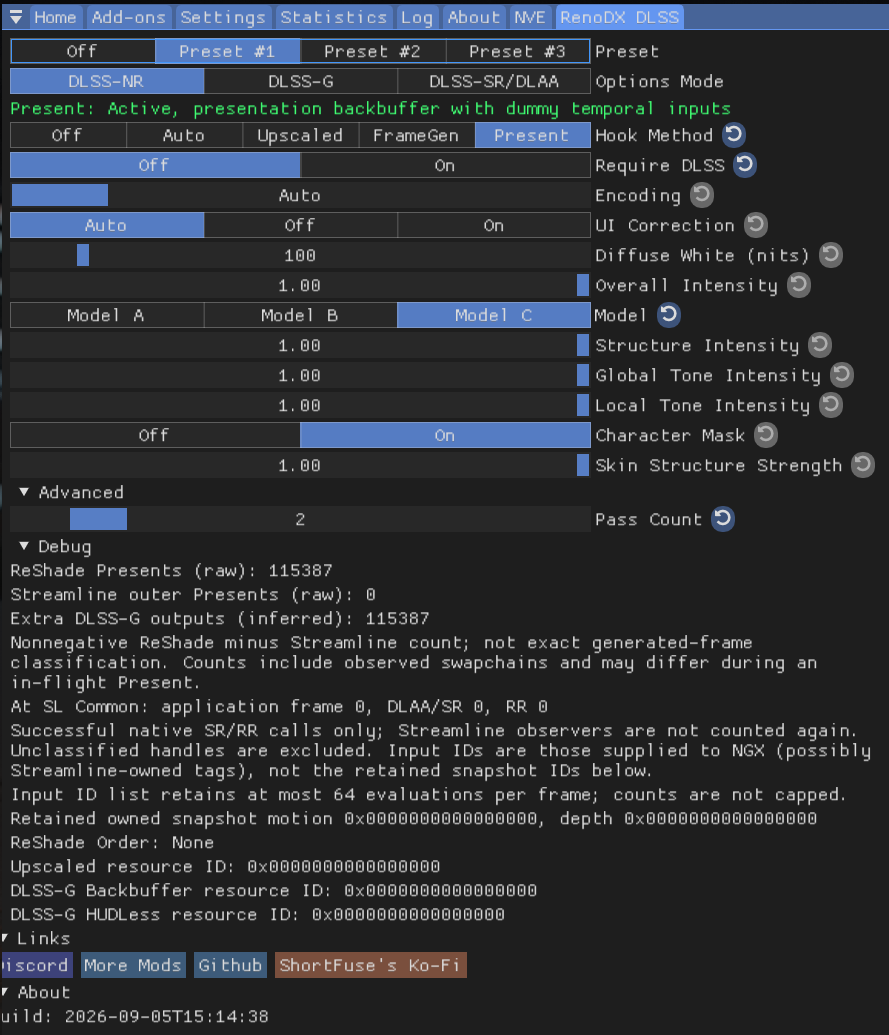
- Switch DLSS 5 on and off to compare the image with and without it. As with any ReShade effect, you can combine it with the filters and presets described above, but expect a very different look from the original graphics, particularly on faces, skin and materials.
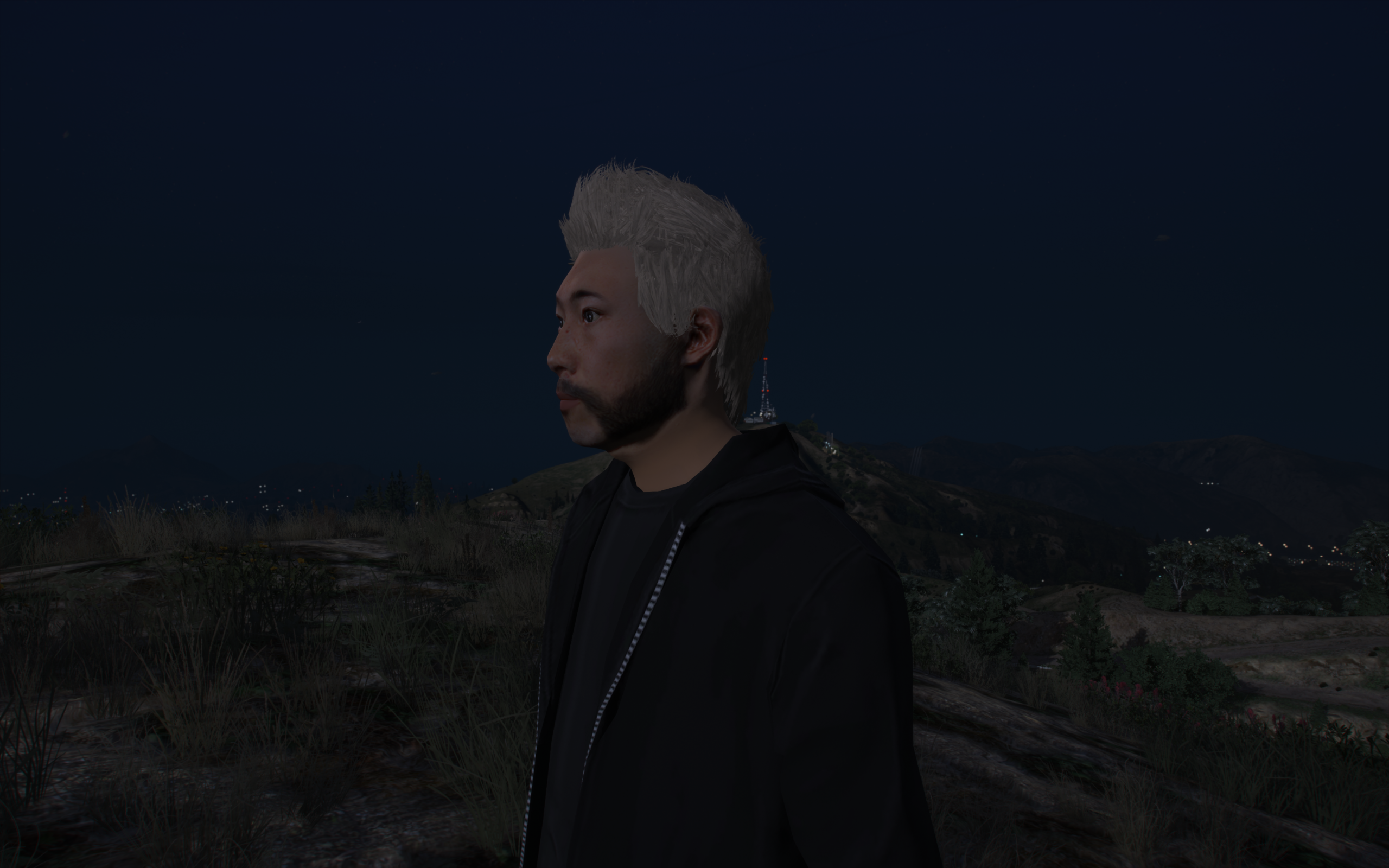
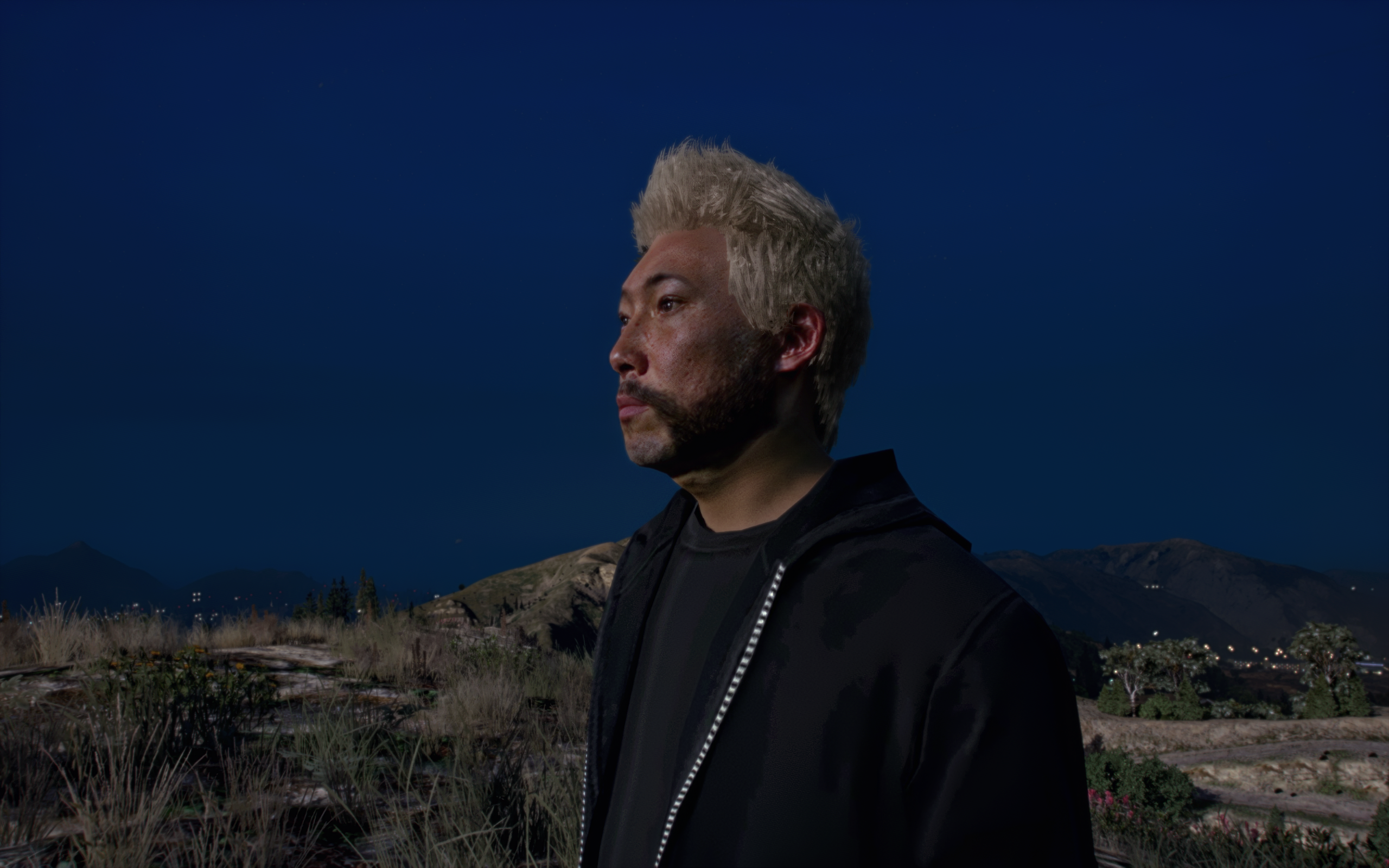
- If the frame rate is too low for comfortable play or photography, lower the resolution or the graphics settings, and compose your shot before turning on the DLSS5 mod in ReShade.